

Attendance, breaks and check-in
A tap to start the day, typed breaks, a tap to end it — so the live board and attendance reports reflect real working time.
- 1
Check in
Home → Check in (or More → Work → Attendance). If your admin requires location for check-in, the app asks once. Your status becomes Available on the live board.
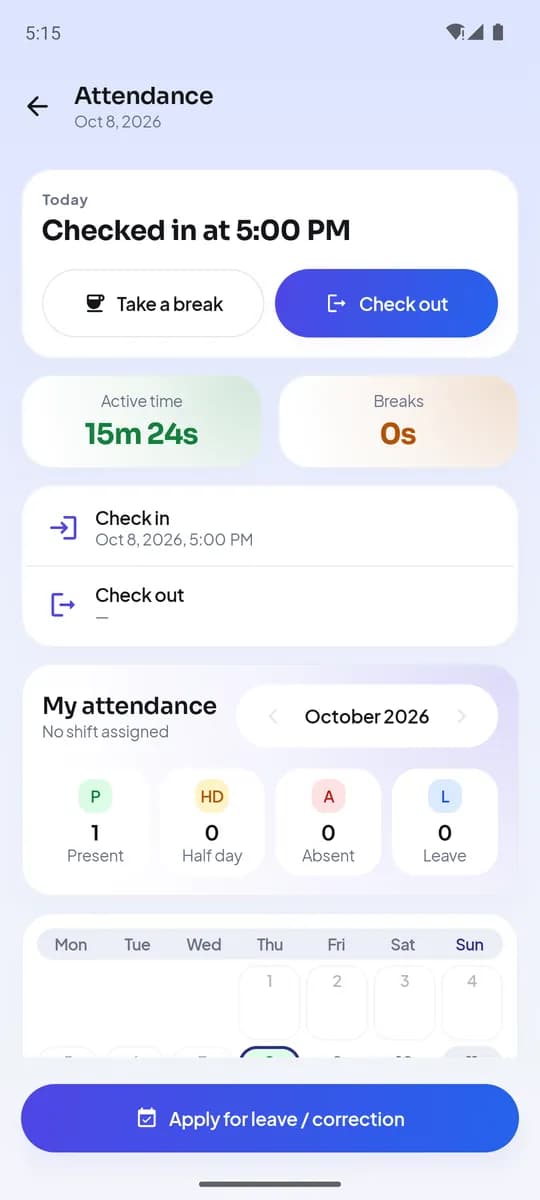
Attendance on Android - 2
Take a break
Tap Take break and choose the type your admin configured — lunch, tea, meeting, personal. End it from the same screen. Breaks longer than the maximum are flagged in the report.
- 3
Idle detection
Checked in, not on a break, and no call or app activity for the idle threshold (set by the admin, ten minutes by default) shows as Idle to the team lead. Making a call or logging an outcome clears it.
- Check inAvailable
- On callfrom captured calls
- On breaktyped
- Idleno activity past threshold
- Check out
Statuses the live board shows - 4
Check out
End the day with Check out. If you forget, automatic checkout closes the day after the number of hours your admin set, and the report marks it as automatic.
- 5
Reports
Reports → Attendance shows, per person per day, check-in and check-out, active time on web and app, breaks by type, idle time and outcomes logged — exportable to CSV.
PresençaExemplo- Agente A6.2h ativo
- Agente B5.1h ativo
- Agente C6.4h ativo
ativopausasociosoActive, break and idle time per person
O que você tem no final
- Live statuses that match reality
- Breaks and idle time measured, not guessed
- An exportable attendance report per person per day
Relacionados
- ProdutoRecursosTudo o que a LumaKol faz, tela por tela
- GuiaRun the day from the live board
- ArtigoHow to run a calling team you cannot see: attendance, a live board and daily targets
Escreva para o suporte — toda mensagem é respondida por uma pessoa em até um dia útil.
Falar com o suporte