

Languages, time zone and appearance
LumaKol ships in 33 languages. Each person picks their own; the workspace sets the default. Dark mode lives in the mobile apps.
- 1
Workspace default
Settings → Organization → Default language is what new members see first, and the language of system emails to them.
- 2
Your own language and time zone on the web
Use the language menu in the top bar: it changes the whole interface immediately and is saved to your account, so the mobile app follows too. Your time zone is under Settings → Profile & security and drives every date and reminder you see. Follow-ups are always shown in the agent’s own time zone.
lumakol.com/app/app/settingsProfilSpracheहिन्दीZeitzoneAsia/KolkataSpeichern - 3
On the phone
More → Preferences → Language (follow the system language, or pick any of the 33 — listed by their own names) and Appearance (Follow system, Light, Dark). Both apply instantly, and Arabic, Hebrew, Persian and Urdu flip the whole layout right-to-left.
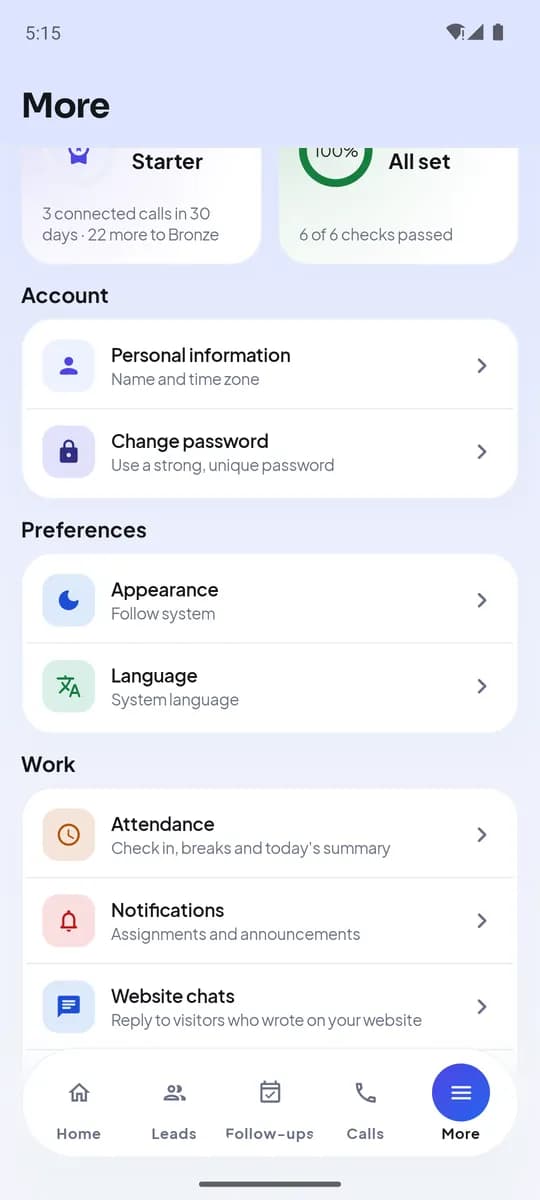
More → Preferences on Android
Was Sie am Ende haben
- Every person working in their own language
- Dates and reminders in the right time zone
- Light or dark on the phone
Verwandte Inhalte
Kostenlos testenSchreiben Sie dem Support – jede Nachricht wird innerhalb eines Werktags von einem Menschen beantwortet.
Support kontaktieren