

Log a call outcome
One tap for what happened, a follow-up that is already filled in, an optional note and the questions your team defined. Ten seconds, every call.
- 1
The prompt appears when the call ends
On Android the Call outcome screen opens by itself after a call on the work SIM when Show over other apps is allowed; otherwise a notification — “Call with … ended” — opens it with one tap. On iPhone it opens when you return to the app. On the web, open the lead and choose Log call outcome. Calls still waiting for an outcome are counted on the Recent calls card on Home until they are done.
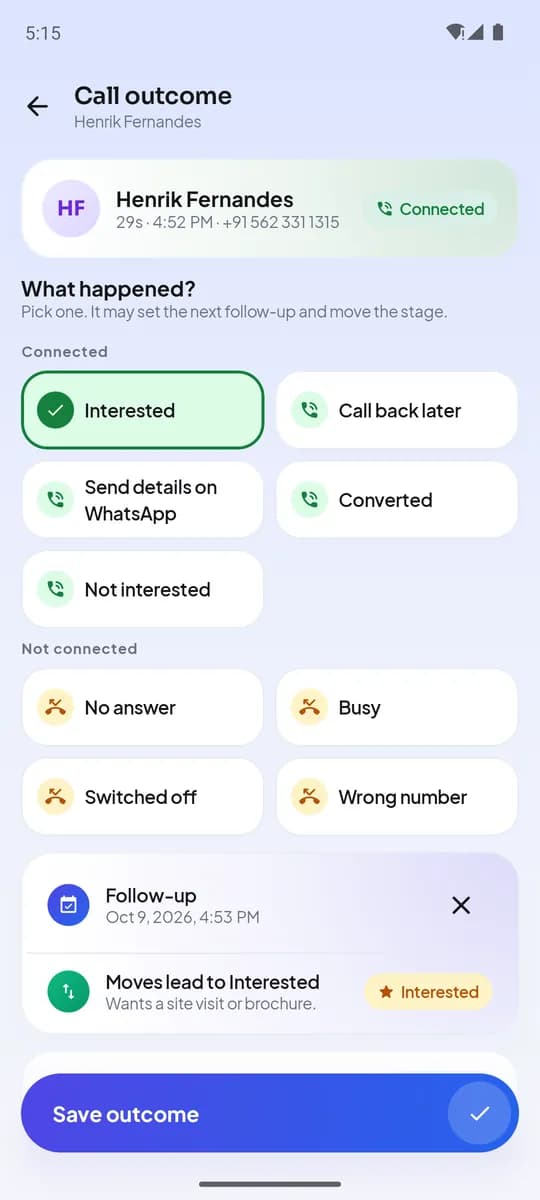
Call outcome on Android - 2
Pick the outcome
Outcomes appear as tiles in the groups your admin set up — for example Connected and Not connected. Tap one and it gets a tick. The follow-up below fills in from that outcome’s default, and the stage the lead moves to, if any, is shown under it.
- 3
Adjust the follow-up and add a note
If the customer said “call after 6”, tap the follow-up and pick the time; presets cover in 1 hour, 3 hours, tomorrow 10:00, 3 days and next week. Notes are one line for the next caller: what was discussed, objections, next steps.
- 4
Answer the questions
Questions your admin attached to this outcome appear last — a choice list, a yes/no switch, a 1–5 rating, a number or a short text. Required ones are marked with an asterisk. Save.
- Call ends
- Outcomegrouped chips
- Follow-uppre-filled
- Note + questions
- Saved & syncedworks offline
The ten-second loop - 5
What happens next
The lead’s attempt count goes up, its stage moves if the outcome says so, the follow-up appears in Follow-ups and as a reminder on your phone, and the call shows in the manager’s view with its outcome. If you are offline, everything is stored on the phone and synced when the connection returns — without duplicates.
- 6
Mandatory feedback
Your admin chooses Remind (the default), Block the next call until the outcome is saved, or Optional. When it is Block, the outcome screen stays until it is completed.
Co będziesz mieć na końcu
- Every captured call has an outcome, a follow-up and a note
- Stages and attempts update themselves
- Managers see real outcomes, not self-reports
Powiązane
- ProduktJak to działaCodzienny cykl — od leada do follow-upu
- PoradnikFollow-ups and reminders
- ArtykułPost-call feedback that agents actually fill in: how to design your dispositions
Napisz do wsparcia — na każdą wiadomość odpowiada człowiek w ciągu jednego dnia roboczego.
Skontaktuj się ze wsparciem