

Every permission, explained before you tap Allow
LumaKol logs work calls from your own SIM, so the Android app needs a few phone permissions. Each one is asked for on its own screen, with a plain reason, only when the feature needs it — and the app keeps working if you say no.
- 9permissions on Android — 5 of them optional
- 1 at a timeasked on its own screen, with the reason first
- Still worksdeclined permissions switch a feature off, never the app
Needed to log lead calls automatically — duration, time and whether it connected.
LumaKol reads your call log only to match calls with the leads assigned to you. Calls with other numbers stay on your phone, unless your workspace turns missed calls from new numbers into leads.
On Android, every work call is captured automatically
The Android app reads the phone's own call log for the SIM you choose as your work line, so calls are logged with duration and outcome without typing. That takes a few permissions — here is each one.
- Only the SIM you choose is captured; every other SIM is ignored.
- Asked one at a time during setup, core ones first, optional ones last.
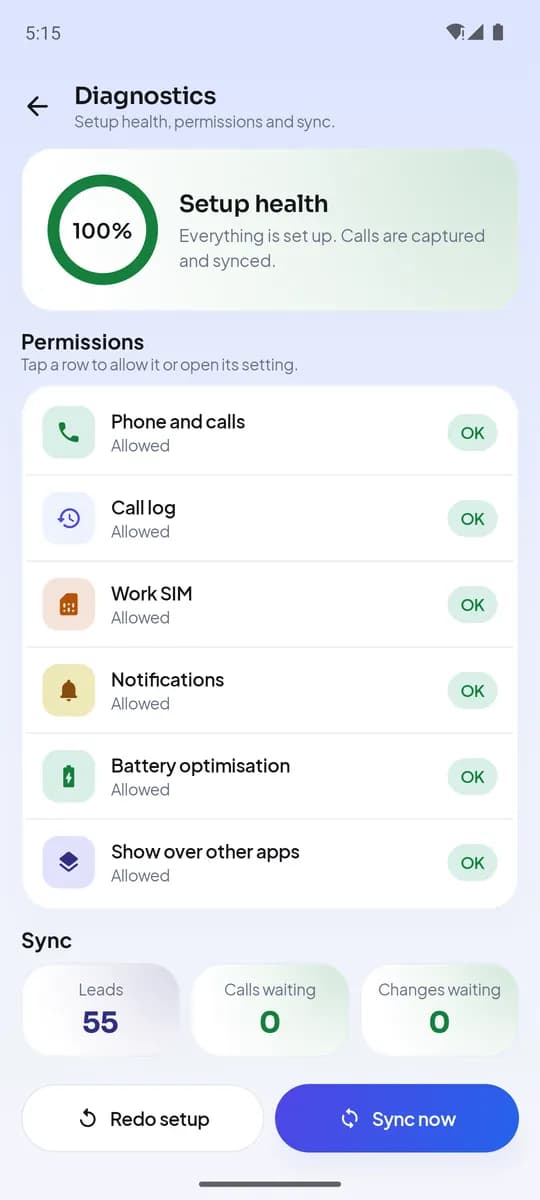
- Every permission can be changed later in the app's Settings → Diagnostics or in Android settings.
- Daniel ReyesAndroidCoreAsked during setup
Phone and calls
Dials a lead from the app through your chosen work SIM and notices when a call starts and ends, so the outcome prompt appears at the right moment.
- What it reads
- Whether a call is in progress, which SIMs are in the phone, and the number of the SIM you pick as your work line.
- What it never does
- Never reads your contacts, never places a call you did not tap, never records audio.
- If you decline
- Leads open in your phone's dialer instead of dialing directly and call ends are not detected — everything else works.
- AndroidCoreAsked during setup
Call log
Matches calls on your work SIM with the leads assigned to you and logs duration, time and whether the call connected — no typing after every call.
- What it reads
- Entries in the phone's call log from the moment setup finishes: number, time, duration and direction, only for the work SIM.
- What it never does
- Never reads calls from before setup or on your personal SIM, and never uploads calls you make to numbers that are not leads. Incoming calls from new numbers are sent only if your workspace turns on missed-call leads.
- If you decline
- Calls are not captured automatically; you can still log outcomes by hand and use leads, notes and follow-ups.
- Work SIM · Slot 1AndroidCoreChosen during setup
Work SIM
You choose which SIM is your work line. Every other SIM is treated as personal and ignored completely.
- What it reads
- The list of SIM cards in the phone so you can pick one.
- What it never does
- Never captures calls on the SIM you did not choose.
- If you decline
- Capture stays off until a work SIM is chosen; you can pick one later in Settings.
- Follow-up · 4:30 pmAndroidCoreAsked during setup
Notifications
Shows the outcome prompt after a lead call, follow-up reminders, new assignments and sync problems.
- What it reads
- Nothing — this permission only lets the app show notifications.
- What it never does
- Never sends marketing or promotional notifications.
- If you decline
- No prompts or reminders; you check the Follow-ups tab yourself.
- Capture keeps runningAndroidOptionalOptional, during setup
Battery optimisation
Some phones stop apps in the background. Excluding LumaKol keeps call capture and sync running between opens.
- What it reads
- Nothing — this is a system setting for the app itself.
- What it never does
- Never runs anything other than call capture and sync in the background.
- If you decline
- Calls made while the app was closed are still picked up the next time you open it; they may just appear later.
- AndroidOptionalIncoming · LeadOptional, during setup
Show over other apps
Shows the lead's name, stage and last outcome as a small card when a lead calls you, and opens the outcome form right after the call.
- What it reads
- Nothing — it only lets the app draw a card on top of the dialer.
- What it never does
- Never shows anything outside an incoming lead call or the post-call prompt.
- If you decline
- You get a notification instead of the on-screen card.
- AndroidOptionalOptional, when you turn on recording sync
Audio files (call recordings)
If your phone's own dialer records calls, LumaKol can attach that recording to the matching lead so managers can coach on real conversations.
- What it reads
- Audio files created by your dialer around the time of a lead call, matched by time, duration and number.
- What it never does
- Never records calls itself, never reads music or other audio, never uploads recordings for calls that are not leads.
- If you decline
- Calls are logged without a recording. Uploads are Wi-Fi-only by default when it is on.
- AndroidOptionalAsked when you first record a voice note
Microphone (voice notes)
Lets you dictate a note instead of typing. Recorded voice notes are saved to your own Google Drive, which you can connect once Google Drive connections are available in LumaKol.
- What it reads
- Your voice, only while you hold or tap Record or Dictate in a note.
- What it never does
- Never listens to or records phone calls, never records in the background.
- If you decline
- You type notes instead; everything else works.
- Checked in · OfficeAndroidOptionalAsked at your first check-in
Location (check-in and field visits)
Asked the first time you check in — at work, if your workspace uses location-based attendance, or at a customer when you check in on a field visit. Nothing about calling uses location.
- What it reads
- A single position fix at the moment you tap Check in or Check out: compared with the office area for attendance, or with the lead’s saved location for a field visit.
- What it never does
- Never tracks you in the background, never records location during calls or between check-ins.
- If you decline
- Attendance check-in still works where location is not required, and field visits cannot be checked in; calling and everything else work as usual.
On iPhone, nothing from the call log
iOS does not let any app read the call log or listen to calls, so the iPhone app works in assisted mode: calls you start from a lead are tracked by the app itself and the outcome is asked right after.
- Calls started from the app are logged with time and outcome; calls dialed elsewhere are not captured.
- The app never asks for your contacts or call history; the camera, microphone and location are asked for only when you use the feature that needs them.
- Caller ID uses Apple's Call Directory, which keeps your leads' names on the phone and never sends your calls to LumaKol.
- Follow-up · 4:30 pmiPhoneCoreAsked during setup
Notifications
Shows the outcome prompt after a call started from the app, follow-up reminders, new assignments and sync problems.
- What it reads
- Nothing — this permission only lets the app show notifications.
- What it never does
- Never sends marketing or promotional notifications.
- If you decline
- No prompts or reminders; you check the Follow-ups tab yourself.
- iPhoneOptionalDaniel Reyes · LeadTurned on in iPhone Settings
Caller ID (Call Directory)
Your assigned leads are added to iOS's Call Directory so an incoming call shows the lead's name on the lock screen. You switch it on under Settings → Phone → Call Blocking & Identification.
- What it reads
- Only the names and numbers of leads assigned to you, kept on the phone by iOS.
- What it never does
- Never sees who is calling you — iOS does the matching; the app never receives your call history.
- If you decline
- Incoming calls from leads show only the number; everything else works.
- Checked in · OfficeiPhoneOptionalAsked at your first check-in
Location (check-in and field visits)
Asked the first time you check in — at work, if your workspace uses location-based attendance, or at a customer when you check in on a field visit. Nothing about calling uses location.
- What it reads
- A single position fix at the moment you tap Check in or Check out: compared with the office area for attendance, or with the lead’s saved location for a field visit.
- What it never does
- Never tracks you in the background, never records location during calls or between check-ins.
- If you decline
- Attendance check-in still works where location is not required, and field visits cannot be checked in; calling and everything else work as usual.
- iPhoneOptionalAsked when you first take a visit photo
Camera (field visit photos)
Takes a photo during a field visit — a shop front, a signed form — and saves it to your own Google Drive with the visit. Visit photos need a Google Drive connection, which is not available in LumaKol yet.
- What it reads
- Only the photo you take in that moment.
- What it never does
- Never opens your photo library, never takes photos by itself.
- If you decline
- Visits are checked in without a photo.
- iPhoneOptionalAsked when you first record a voice note
Microphone (voice notes)
Lets you dictate a note instead of typing. Recorded voice notes are saved to your own Google Drive, which you can connect once Google Drive connections are available in LumaKol.
- What it reads
- Your voice, only while you hold or tap Record or Dictate in a note.
- What it never does
- Never listens to or records phone calls, never records in the background.
- If you decline
- You type notes instead; everything else works.
- iPhoneOptionalAsked when you first dictate
Speech recognition (dictation)
Turns what you dictate into the text of a note. Your iPhone does the transcription where your language supports it.
- What it reads
- Only the words you dictate into a note.
- What it never does
- Never transcribes calls or anything you did not dictate.
- If you decline
- You type notes instead.
One screen per permission, reason first
The Android setup flow follows Google Play's guidance for sensitive permissions: explain before you ask, ask in context, and keep the app usable either way.
- 1
One permission per screen
No wall of checkboxes. Each screen covers a single permission with an illustration, a plain benefit and a short "why we ask" note.
- 2
The reason comes before the system prompt
You read what will be accessed and what will not, then tap the button. Only then does Android show its own Allow / Don't allow dialog.
- 3
Android stays in control
The system dialog is the real gate. Anything you decline stays off until you change it in the phone's settings.
- 4
Change your mind any time
Every permission can be turned on or off later from Settings → Diagnostics in the app, or from Android's app settings.
Clear lines we do not cross
- It never reads or uploads your phone's contacts.
- It never captures calls on a SIM you did not choose as your work line.
- It never records calls itself — it only attaches recordings your dialer already made, if you turn that on.
- It never reads your messages or photo library, and takes location only at the moment you check in.
- Your call data is used only to run your workspace and is never sold or shared for advertising.
- It never reads calls from before the day you finished setup.
Call recording is a feature of the phone's dialer, not of LumaKol. Where the dialer records, the app can attach the file to the matching lead; where it does not, calls are logged without audio. Recording laws differ by country — the workspace owner is responsible for informing callers where required.
The full picture
The Privacy Policy describes every data category in detail; the Security page covers how it is protected.
Give your team a CRM that captures every call
Set up your workspace in minutes and start capturing calls today.
Create free account