

Invite your team and choose roles
Agents and team leads use seats; up to three owners, admins, billing admins and viewers are free. Invite by email, or by mobile number for agents who do not use email.
- Names and mobile numbers (or emails) of the people who will call
- Enough seats on your plan — the trial includes 3 callers
- 1
Understand the roles
Owner runs the workspace and billing. Admin manages settings and people, but not billing. Billing admin handles the subscription and invoices and can read reports. Team lead sees their team’s leads, the live board and recordings. Agent sees their own leads and calls from the app. Viewer can read leads, calls and reports across the workspace but change nothing.
- Owner / Adminsettings, people, billing
- Team leadteam leads, live board, coaching
- Agentown leads, calls from the app
- Viewerreads everything, changes nothing
Only agents and team leads use paid seats - 2
Send the invitation
Team → Invite member. Choose By email (we send the link) or By mobile number (you get a link to share on WhatsApp or SMS). Pick the role. The invitation reserves a seat until it is accepted, revoked or expires after 7 days. A workspace can have up to three free members — owners, admins, billing admins and viewers — including the owner.
lumakol.com/app/app/teamЗапросити учасникаЗайнято 4 з 10 місцьНадішліть поштою або за номером телефону для агентів без e-mail — ви отримаєте посилання для WhatsApp.ПоштоюМи надішлемо посилання-запрошення поштоюЗа номером телефонуВи надішлете посилання у WhatsApp або SMSНомер телефону+91 98765 00099РольАгентЗапросити учасника - 3
What the invitee does
They open the link, add their name and mobile number, choose their own password and are signed straight in. (If you create the account for them instead, they get a temporary password and must choose a new one the first time they sign in.) Agents then install the calling app and sign in with the same mobile number.
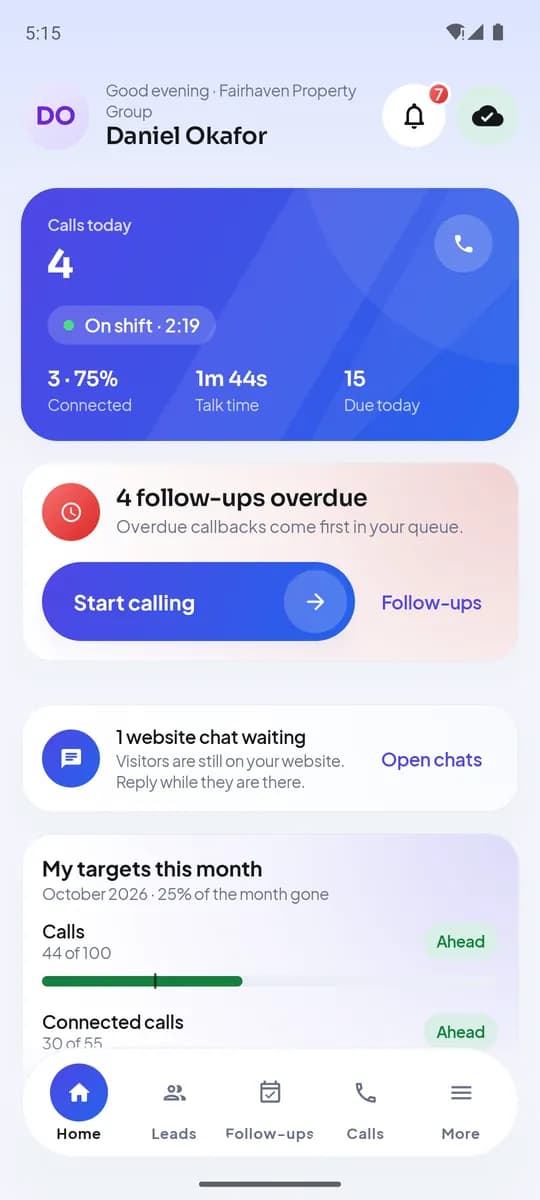
An agent’s Home screen after signing in on Android - 4
Group people into teams
Team → Teams. Teams decide what a team lead can see and how round-robin assignment splits imported leads.
- 5
Deactivate, reactivate or change a role
From a member’s page. Deactivating frees the seat and ends the person’s access; their leads stay and can be reassigned in one action from the Leads or Lists page.
Що ви матимете наприкінці
- Everyone invited with the right role
- Seats in use visible on the Team page
- Team leads mapped to the people they coach
Пов’язане
- ПродуктФункціїУсе, що вміє LumaKol, екран за екраном
- ПосібникInstall the Android app and set up your work SIM
- ПосібникPlans, seats and billing
Напишіть у підтримку — на кожне повідомлення відповідає людина протягом одного робочого дня.
Зв’язатися з підтримкою