

Install the Android app and set up your work SIM
Sign in with the same mobile number, walk through the permission steps, pick the SIM you call from, and let the app start capturing.
- An Android phone (Android 10 or newer) with the SIM you call from
- Your LumaKol sign-in (mobile number or email + password)

- 1
Sign in
Install LumaKol from Google Play and sign in with the mobile number or email your admin invited. If it is your first sign-in, you set your own password before anything else.
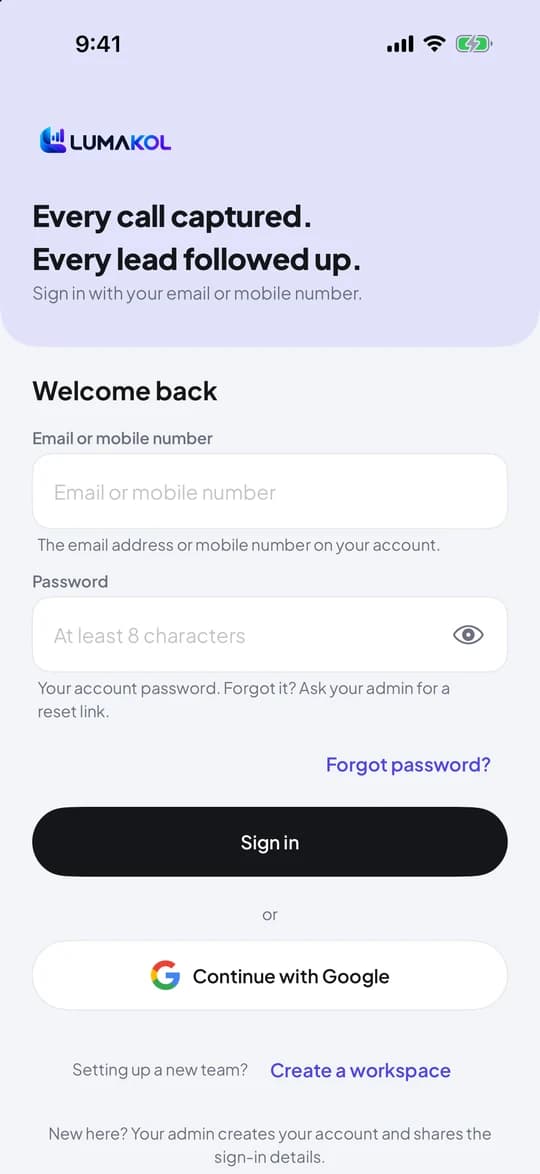
The sign-in screen (same on Android and iOS) - 2
Walk through the setup steps
Each permission step explains what is collected and why before you tap Allow. Phone and calls, and Call log, are needed to capture calls on the work SIM; Notifications bring the post-call prompt and follow-up reminders. Battery optimisation, Show over other apps (the caller-ID card and the outcome screen that opens by itself after a call) and Call recording sync are optional — tap Skip for now and switch them on later from More → Diagnostics or More → Calling. Owners and admins who do not call only see the notifications step.
- Welcome
- Phone and callsthen Call log
- Work SIMdual-SIM phones
- Notifications
- Batteryoptional
- Show over other appsoptional
- Recording syncoptional
Setup steps on Android - 3
Pick the work SIM
On a dual-SIM phone, choose the SIM you use for work. Only calls on that SIM are captured; the other SIM is never read. You can change this later under More → Calling → Work SIM.
- 4
Check the setup health
The last step shows a setup health score made of six checks — phone, call log, notifications, work SIM, battery optimisation and Show over other apps. Green means capture will keep working after restarts. The same score sits at the top of the More screen and in More → Diagnostics.
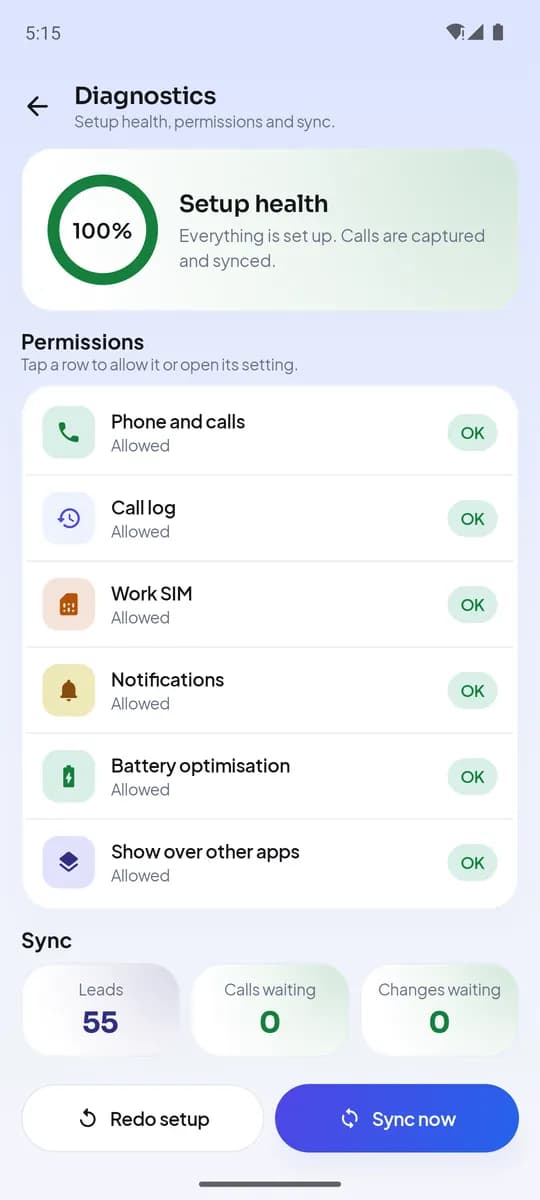
More → Diagnostics - 5
Your Home screen
The top card shows today’s calls, how many connected, talk time and follow-ups due, with a call button that opens your queue. Under it, the one thing to do next — a call waiting for its outcome or overdue follow-ups — then any website chats waiting for a reply, your targets for the month with the pace you are on, your performance for today, 7 or 30 days with a trend chart, shortcuts for check-in and recent calls, and the next follow-ups. Everything on it comes from the calls the app captured; nothing is typed.
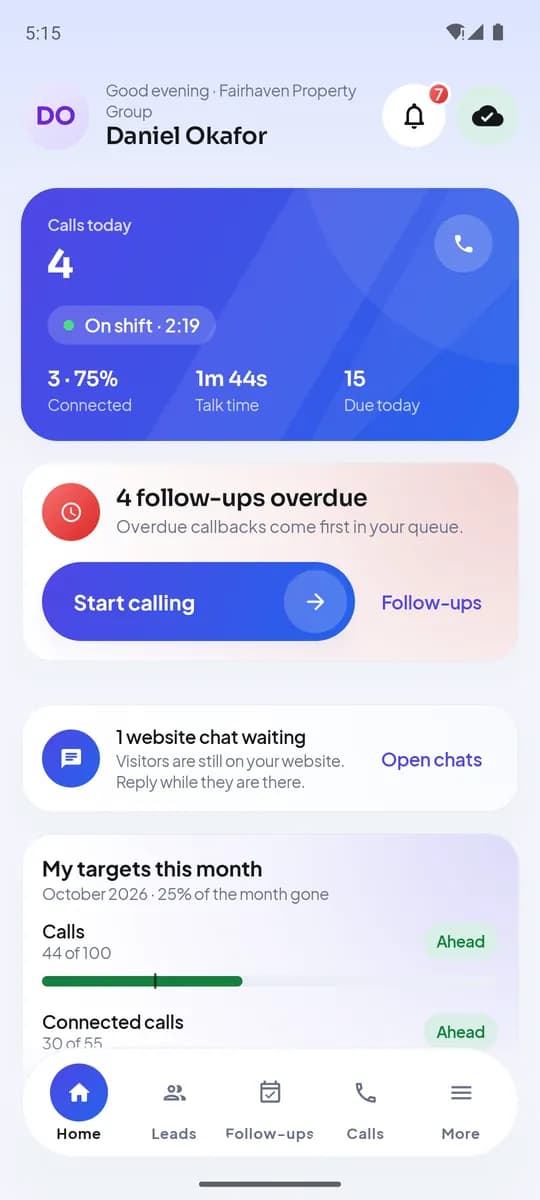
Home on Android
Що ви матимете наприкінці
- Signed in on the phone you call from
- Calls on the work SIM captured automatically, including missed calls
- A health score you can check any time
Часті запитання
Does the app read my personal calls?+
No. Only the SIM you mark as the work SIM is captured. On a single-SIM phone that is your only SIM, so use a dedicated work number if you want personal calls kept separate.
What if I decline a permission?+
The app keeps working for what it can do and shows the missing item in Diagnostics. Without the call log permission, calls are not captured and outcomes can be logged manually from the lead.
Пов’язане
- ПродуктДозволиЩо застосунок запитує на телефоні й навіщо
- ПосібникStart calling from the queue
- СтаттяWhy your sales calls should come from your agents’ own numbers (and what VoIP quietly costs you)
Напишіть у підтримку — на кожне повідомлення відповідає людина протягом одного робочого дня.
Зв’язатися з підтримкою