
Follow up automatically with sequences
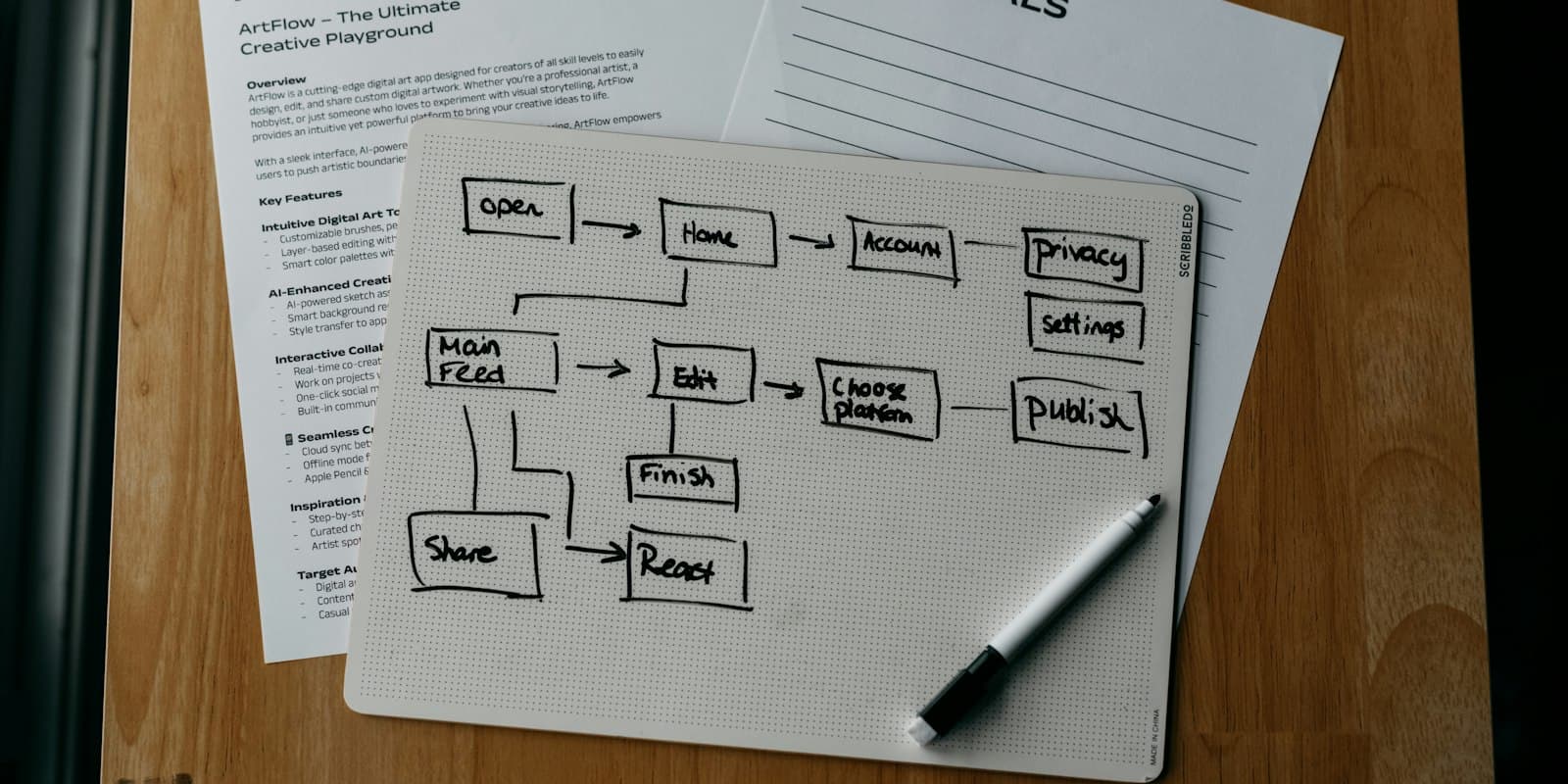
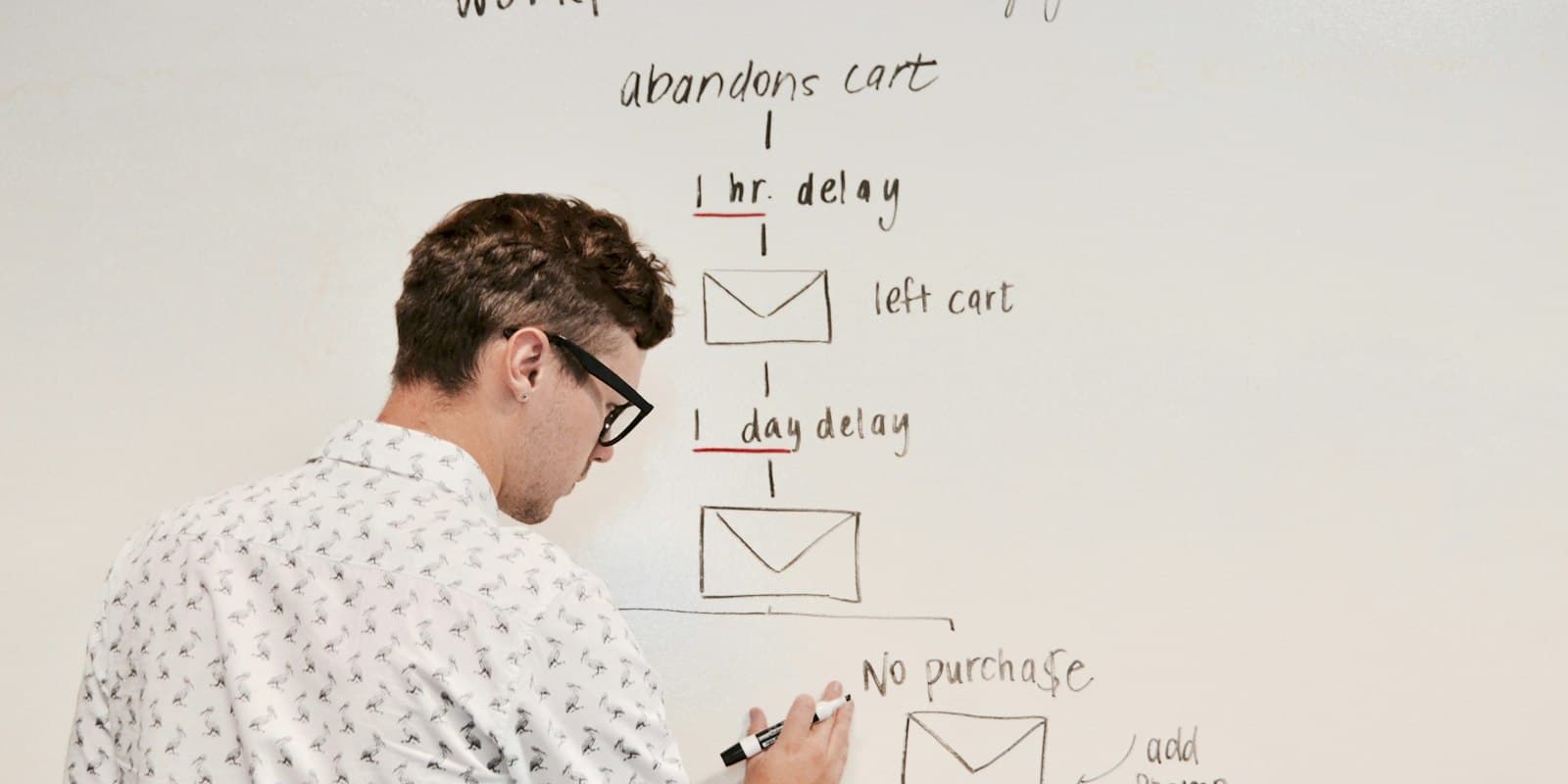
Timed steps after a lead is added: emails that send themselves, WhatsApp and SMS reminders with the text ready, and call tasks for the owner — ending when the lead answers, is won or is lost.
- Owner or admin access to build sequences (anyone who can change a lead can add it to one)
- Message templates written, if you want to start steps from them
- Email addresses on leads for email steps, and phone numbers for WhatsApp and SMS steps
- A mailbox connected under Settings → Email (yours or the workspace’s) for email steps — emails are sent from it, never from LumaKol
- 1
Start from a ready-made sequence
Setup → Sequences. Two starters are ready to copy and adjust: “New enquiry welcome” — an email straight away, a WhatsApp the next day and a call task on day three — and “Could not reach”, for leads who do not pick up: a WhatsApp an hour later, an SMS two days later, then a call task. Or choose New sequence and build your own.
- Lead added
- Emailright away, from your mailbox
- WhatsAppday 1, owner sends it
- Call taskday 3, in Follow-ups
The “New enquiry welcome” starter - 2
Add steps and waits
Steps run in order. Each one waits after the step before it, in days plus 0 to 23 hours; the first waits after the lead is added, and 0 runs it right away. “Start from a template” copies one of your message templates into a step, which you can still edit. Insert variable adds the lead’s details — {{first_name}}, {{agent}}, {{org}}, your custom fields — and they are filled in for each lead. An email step needs a subject.
Порада: Three or four steps over a week is plenty. A sequence is there to make sure the next touch happens, not to replace the call. - 3
How each kind of step works
Only email steps send anything by themselves. WhatsApp and SMS always go from the owner’s own phone.
- Email — sent automatically from your own email account: the lead owner’s mailbox if they connected one in Settings → Email, otherwise the workspace mailbox. LumaKol never sends it from its own address, and if no mailbox is connected the step is skipped. Replies land in that inbox. Every email has a stop link and one-click unsubscribe, and a lead who uses it gets no more emails
- WhatsApp and SMS — the owner gets a notification, and the lead’s page shows the message with an Open WhatsApp or Open SMS button that opens it filled in. A step nobody sends within three days is skipped; the owner can also Skip it
- Task — sets a follow-up due now for the owner, so it shows in their Follow-ups and reminds them on their phone
Is the step an email?Sent automaticallyfrom your connected mailbox; replies land in that inboxThe owner is promptedWhatsApp and SMS open on their phone; tasks land in Follow-upsNothing goes out on WhatsApp or SMS without a person pressing send - 4
Decide when leads leave
Under “Leave the sequence when”, two switches, both on by default: the lead is won or lost, and a call is answered — logging an outcome on an answered call ends it, because the conversation has started. Turn either off for a sequence that should carry on regardless. Anyone can also press Stop for one lead.
- 5
Add leads to it
Only sequences that are switched on can take new leads.
- From a lead’s page — Sequence, pick one, Add
- In bulk from the leads list — select leads, then Add to sequence; leads already in it, won or lost, or not yours to change are skipped
- With an automation rule — the “Add to sequence” action, for example for every new lead from Google Ads
- 6
Follow the progress
Each sequence shows how many leads are in progress, finished or left early. “Leads in this sequence” lists the step each lead is on, when the next one runs, and why leads left — a call was answered, the lead was won or lost, it asked for no emails, or someone stopped it. On a lead’s page the Sequences panel shows the step it is on and what comes next. Switching a sequence off pauses it for every lead in it.
- How many sequences can be on at once depends on your plan — see Pricing
Що ви матимете наприкінці
- A next touch for every lead, without anyone remembering to
- Emails sent from your own mailbox, with replies landing in your inbox
- WhatsApp and SMS still sent by people, from their own numbers, with the text ready
Часті запитання
Which address do sequence emails come from?+
From your own email account. Each person can connect their mailbox under Settings → Email (Gmail, Outlook, Zoho, a company mail server — using SMTP and, for Gmail or Outlook, an app password), and an admin can connect one for the whole workspace. An email goes from the lead owner’s mailbox, or else the workspace one; with neither connected the step is skipped. Replies arrive in that inbox, and a daily limit protects the mailbox from being blocked.
Does LumaKol send WhatsApp messages automatically?+
No. A WhatsApp or SMS step reminds the lead’s owner and opens the message ready to send from their own phone. Only email steps send by themselves.
What happens when a lead clicks the stop link?+
Your workspace sends them no more emails, and any email step for them is skipped. Calls and the messages your team sends by hand are not affected.
A lead has no email address. Does the sequence get stuck?+
No. An email step for a lead without an address is skipped and the sequence moves on; the same goes for WhatsApp and SMS steps when there is no phone number.
Пов’язане
- ПродуктФункціїУсе, що вміє LumaKol, екран за екраном
- СтаттяWhatsApp plus calls: the two-channel follow-up playbook, with templates you can copy
- ПосібникCall scripts and WhatsApp / SMS / email templates
Напишіть у підтримку — на кожне повідомлення відповідає людина протягом одного робочого дня.
Зв’язатися з підтримкою